
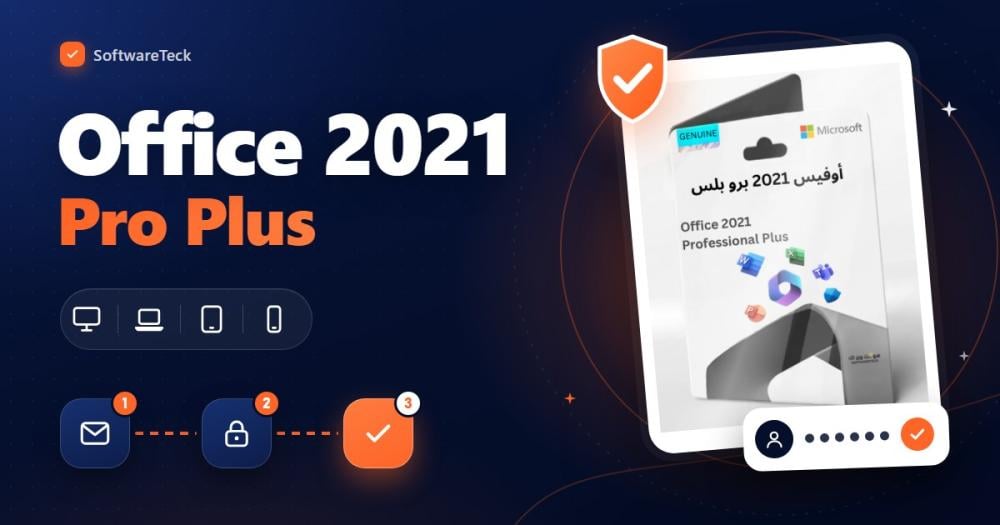
This guide shows you how to install and activate Office 2021 Professional Plus on a Windows 10 or Windows 11 PC with a product key, without a Microsoft account and without a subscription. It follows the exact method our Office 2021 Pro Plus Retail key is delivered with: the official installer from Microsoft's servers plus a 25-character activation code. Most of the time goes into the download; the activation itself is quick.

What you need before you start
- A Windows 10 or Windows 11 PC. This edition does not run on macOS, Chromebook, iOS or Android.
- Your activation code (25 characters, XXXXX-XXXXX-XXXXX-XXXXX-XXXXX), which you receive after your order.
- About 5 GB for the download, enough free disk space and a stable internet connection.
- A Windows administrator account, so the installer can make changes.
- No other Office on the PC. Microsoft 365 (including a pre-installed trial) and older Office versions should be removed first.
How to install and activate Office 2021 Professional Plus in 8 steps
1. Get your activation code
Order the key and keep the code you receive. The download link is available within seconds of the order. Paste the code into Notepad so you can copy it later without typos.
2. Remove other versions of Office
Open Settings › Apps › Installed apps (on Windows 10: Settings › Apps › Apps & features). Uninstall every Microsoft 365 or Office entry, then restart the PC.
3. Download the official installer
The file ProPlus2021Retail.img (English edition, about 5 GB) comes directly from Microsoft's servers:
4. Mount the .img file
Right-click the downloaded file and choose Mount (double-clicking also works). Windows opens it as a virtual DVD drive, for example D:, in File Explorer.
5. Run Setup.exe
Open the new drive, double-click Setup.exe and select Yes when Windows asks for permission. Office installs by itself. Wait for the message "You're all set! Office is installed now".
6. Open Word
Select Start, type Word and open it. Any Office app works, but Word is the quickest.
7. Enter your code without signing in
In the Sign in to set up Office window, select I don't want to sign in or create an account at the bottom. Paste your 25-character code, confirm it and accept the license agreement.
8. Check that Office is activated
Go to File › Account. Under Product Information you should see Product Activated and the Professional Plus 2021 edition. Word, Excel, PowerPoint, Outlook, Publisher and Access are now ready to use.
Alternative method: File › Account or Command Prompt
If the activation window does not appear, open Word and go to File › Account. Select Activate Product, or Change License / Switch License (the name depends on your Office build), choose Enter product key instead and type your code.
Advanced users can do the same with Microsoft's OSPP script. Open Start, type cmd, select Run as administrator and run these commands, replacing the X's with your code:
cd /d "C:\Program Files\Microsoft Office\Office16" cscript ospp.vbs /inpkey:XXXXX-XXXXX-XXXXX-XXXXX-XXXXX cscript ospp.vbs /act cscript ospp.vbs /dstatusThe last command should show LICENSE STATUS: ---LICENSED---. If the folder does not exist, you installed 32-bit Office: use C:\Program Files (x86)\Microsoft Office\Office16 instead.
Common errors and how to fix them
"The disc image file is corrupted" when mounting: the download is incomplete. Delete the file, download it again and mount it from a local drive.
No "Mount" option in the menu: another program, such as an archiver, has taken over .img files. Right-click the file and choose Open with › Windows Explorer.
"Stop, you should wait to install Office" or "Office (64-bit or 32-bit) couldn't be installed": another Office version is still on the PC. Uninstall it as in step 2 and run Setup.exe again.
Error 0-1018, 17003-2031 or 2035-0 ("Another installation is in progress"): Windows Update or another installer is still running. Let it finish, restart the PC and try again.
"This product key isn't valid": usually a typo. Paste the code exactly as you received it and make sure it is the Office code, not a Windows key.
A "PRODUCT NOTICE" bar saying Word hasn't been activated: select Activate and enter the code again. Check that the date, time and time zone of the PC are correct and that no VPN, proxy or firewall blocks Office.
Frequently asked questions
Do I need a Microsoft account to activate Office 2021 Pro Plus?
No. This edition is activated with the code inside the app and is not linked to your personal e-mail.
Can I install it on a second PC or on a Mac?
No. The code is valid for one PC and one installation, and this edition runs only on Windows 10 and Windows 11. Uninstalling or reinstalling may require a new code, so install Office on the PC you plan to keep.
Is Office 2021 a subscription?
No. It is a one-time purchase with a permanent Retail license and no monthly or yearly fee.
Is Office 2021 still supported by Microsoft?
Microsoft ended support for Office 2021 on October 13, 2026, so there are no new security fixes or updates. Microsoft says the apps may continue to function. If you need continuous updates, a Microsoft 365 subscription is the alternative.
Can I use Office in another language?
Yes. The installer above is the English edition. After activation, install your language from Microsoft's Language Accessory Pack page and select it under File › Options › Language.
Get your Office 2021 Pro Plus key
Ready to start? Get your Office 2021 Pro Plus key for Windows: Word, Excel, PowerPoint, Outlook, Publisher and Access with a permanent license, installed with the steps above. Stuck at any step? Need help? Message us on WhatsApp with your order number.