
This guide explains how to activate Autodesk AEC Collection with a commercial subscription, in simple steps. It is for architects, engineers and contractors who bought, or plan to buy, the Autodesk AEC Collection commercial subscription from SoftwareTeck. There is no product key to type: the subscription is linked to your own Autodesk account (your e-mail), and you simply sign in to download and run the apps.
The AEC Collection (Architecture, Engineering & Construction Collection) is one Autodesk subscription that gives you several design apps at once, including Revit, AutoCAD, Civil 3D and Navisworks Manage. The full list, based on Autodesk's official page, is in the FAQ at the end.
What you need before you start
- An Autodesk account (Autodesk ID) with an e-mail address you can open. If you do not have one yet, create it for free first.
- The right option on the product page: «Commercial 1 year». The «Education 1 Year» option is for students and teachers.
- A Windows 10/11 PC or a Mac, as the product page states, with a stable internet connection and administrator rights to install software.
- Enough free disk space for the apps you choose, because each app has its own system requirements.
How to activate Autodesk AEC Collection step by step
Follow the steps in order and use the same e-mail address in every step.
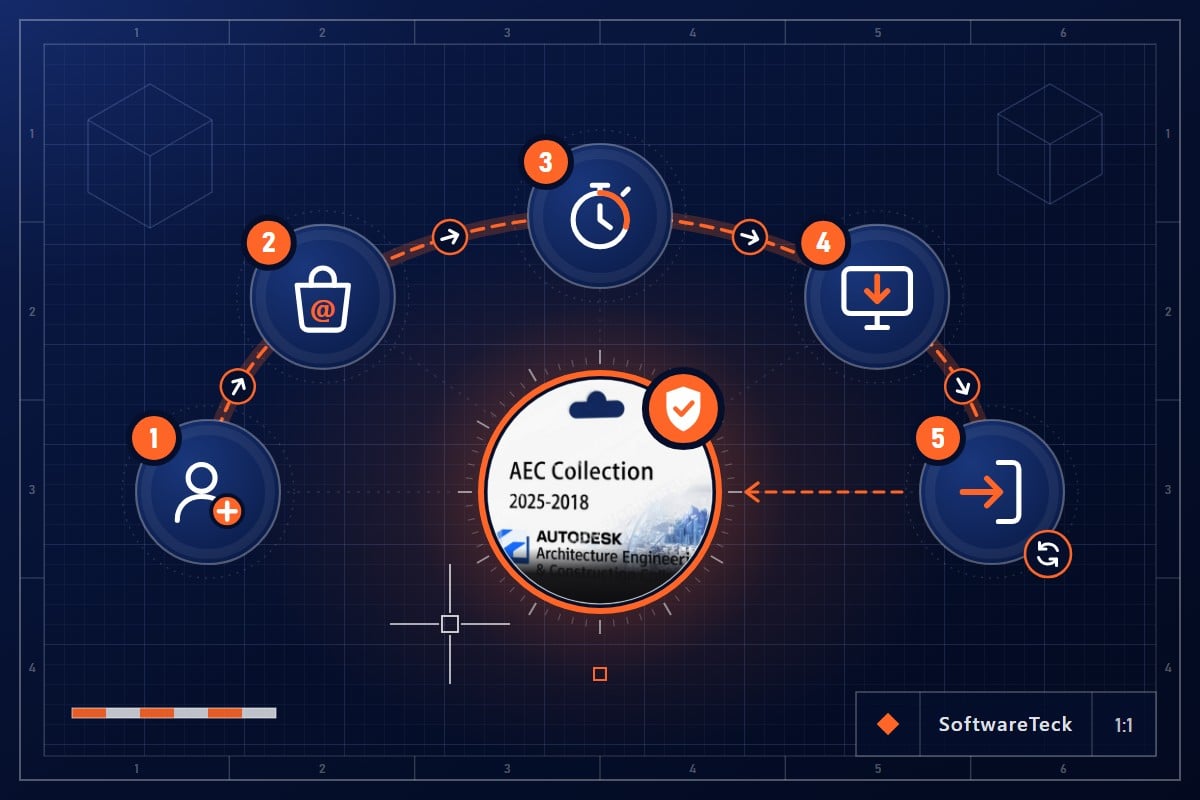
1. Create or check your Autodesk account
Open accounts.autodesk.com/register, enter your name, e-mail and a password, then type the verification code Autodesk sends to your inbox. Already have an Autodesk ID? Just make sure you can sign in with it.
2. Choose the commercial subscription on the product page
On the Autodesk AEC Collection page, select License select › Commercial 1 year. In the Your Autodesk email field, type the exact e-mail of your Autodesk account, then complete the order.
3. Wait until the subscription is linked to your e-mail
The store activates the subscription and links it to your personal e-mail; the product page states that activation takes from 5 minutes to a maximum of 6 hours. If Autodesk sends you an invitation e-mail, accept it with the same address.
4. Sign in to Autodesk Account
Go to manage.autodesk.com and sign in with that e-mail. Open All Products and Services: each app of the collection appears there in its own product tile.
5. Pick the version, platform and language
In the tile of the app you want, for example Revit or Civil 3D, choose the version, platform and language. Then open the menu, pick a download method such as Install or Download, and turn off your pop-up blocker if nothing happens.
6. Install only the apps you need
Run the installer and follow the wizard. You do not have to install the whole collection at once; you can come back to All Products and Services later for the other apps.
7. Open the app and sign in with your Autodesk ID
On first launch, sign in with the same e-mail and password. If the app asks you to choose a license type, select Single-user and sign in instead of entering a serial number.
8. Sign out once, then sign in again
If the app was installed before the activation or still shows a trial, click your profile icon › Sign out, close the app, open it again and sign back in. This is the store's own tip after activation, and it refreshes the license.
Alternative method: one package for several apps (Custom Install)
Need Revit, AutoCAD and Navisworks on the same PC? Instead of downloading each app separately, build one installer in Autodesk Account: go to Products and Services › Custom Install › Create package, or choose Custom Install from a product's drop-down menu. Add the products, check the version and language of each one, keep Install for this computer, then save the package and download it.
Common errors and how to fix them
The product is missing from All Products and Services
You are most likely signed in with a different e-mail. Sign out and sign in with the exact address you gave in the order. If the time stated on the product page has passed and the apps are still missing, contact the store with your order number.
"Device limit reached"
Your Autodesk ID is still active on another computer. Close the app on that device, check that it is not running in the background, then launch it again on the current one.
The app asks for a serial number
This subscription works with your Autodesk ID, not with a serial number. Open Help › About › Manage License › Change License Type, choose Single-user and sign in; the labels may differ slightly between versions.
Install error 1603
Error 1603 is a fatal Windows Installer error during setup. Restart the PC, close other programs, pause your antivirus for a moment and run the installer again; Autodesk's own article on this error also covers removing leftovers of older versions.
Sign-in fails or the license is not detected
On Windows, press Win + R, run the command below and make sure Autodesk Desktop Licensing Service is running with Automatic startup. Turn off any VPN for a moment and update Autodesk Identity Manager (2024 and newer versions).
services.mscFrequently asked questions
Commercial or education subscription: which one do I need?
Choose the commercial option for professional or paid work. Autodesk allows education access only for learning, teaching and research, not for commercial, professional or for-profit purposes.
Do I need a product key?
No. The AEC Collection is activated through your Autodesk ID: the subscription is linked to your e-mail, and each app confirms it when you sign in.
Which apps are included in the AEC Collection?
Autodesk's official list includes Revit, AutoCAD with specialized toolsets, Civil 3D, Navisworks Manage, InfraWorks, 3ds Max, ReCap Pro, Advance Steel, Robot Structural Analysis Professional, Fabrication CADmep, Insight, Autodesk Rendering, Forma Site Design, Forma Building Design and Forma Data Management. Autodesk may update this list.
Does it work on a Mac?
The product page lists Windows 10/11 and Mac. Autodesk notes that most desktop apps in the collection run on Windows, while AutoCAD also runs on macOS, so check each app's system requirements before installing.
How long does the subscription last?
The commercial option is a 1-year subscription, and the product page states a warranty for the full term. When the year ends, you need an active subscription again to keep signing in to the apps.
Can I use it on more than one computer?
You can sign in with your Autodesk ID on another computer, but Autodesk applies a device limit to each user. If you see "device limit reached", sign out on the computer you no longer use.
Get your Autodesk AEC Collection subscription
Ready to work in Revit, AutoCAD and Civil 3D with one subscription? Order the official Autodesk AEC Collection subscription, choose «Commercial 1 year» and enter your Autodesk e-mail, then follow the steps above. Need help? Message us on WhatsApp.