
Want to know how to activate Windows 11 Pro the right way? This guide follows the official method Microsoft documents: you enter a genuine 25-character product key in Settings, and Windows verifies it online within seconds. It is for anyone who has just installed Windows 11, sees the “Activate Windows” watermark, or wants to move from Home to Pro. If you don't have a key yet, get a genuine Windows 11 Pro key from SoftwareTeck: the store states that the key is sent by text message within about 15 seconds of payment and works on one computer or laptop.
It usually takes just a few minutes. Below you will find the exact steps, a Command Prompt alternative, the real meaning of common error codes and a short FAQ.
What you need before you start
- A PC running Windows 11 Pro, or Windows 11 Home you want to upgrade. Check it under Settings › System › About, in Windows specifications.
- A Windows 11 Pro product key: 25 characters in the format XXXXX-XXXXX-XXXXX-XXXXX-XXXXX.
- An internet connection, because Windows activates online.
- An administrator account, since changing the product key needs admin rights.
- For a clean install only: installation media from the official Microsoft Windows 11 download page. Its multi-edition ISO uses your product key to unlock the right edition.
How to activate Windows 11 Pro in Settings: step by step
1. Copy your product key
Open the text message with your key and copy it. Copy-paste is safer than typing: one wrong character, such as the letter O instead of a zero, makes the key invalid.
2. Open Settings
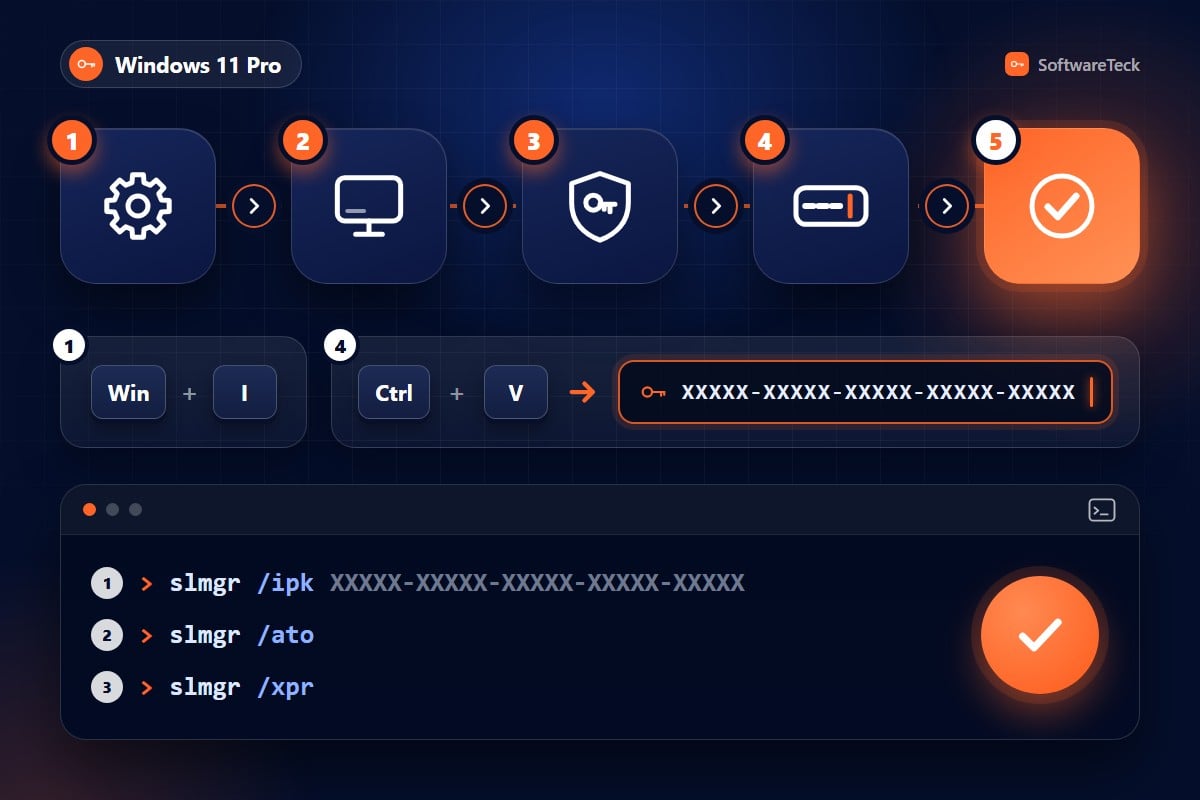
Press Win + I, or open the Start menu and select Settings.
3. Go to System › Activation
Select System in the left menu, scroll down and open Activation. Faster: press Win + R, type ms-settings:activation and press Enter.
4. Select Change next to “Change product key”
Find the Change product key row and select Change. On Windows 11 Home it sits inside the Upgrade your edition of Windows section, so expand that first.
5. Approve the administrator prompt
If User Account Control appears, select Yes or enter an administrator password.
6. Paste the key and select Next
Click the field, press Ctrl + V, check that all 25 characters are there and select Next.
7. Select Activate
Select Activate and wait a few seconds while Windows contacts the activation service. Coming from Home? Windows prepares the upgrade to Pro and may restart, so save your open files first.
8. Confirm that Windows is activated
Back on Settings › System › Activation, you should see “Windows is activated”. On a local account, select Add an account to link your Microsoft account; the status then reads “Windows is activated with a digital license linked to your Microsoft account”, which makes reactivation easier after a hardware change.
Alternative method: activate Windows 11 Pro with Command Prompt
If the Activation page won't open or keeps rejecting the key, use slmgr, the licensing tool built into Windows. Search for cmd, right-click Command Prompt, choose Run as administrator (Microsoft requires an elevated prompt for /ipk) and run these two commands with your key in place of the X's.
slmgr /ipk XXXXX-XXXXX-XXXXX-XXXXX-XXXXX slmgr /atoThe first command installs the key and the second activates Windows online; a small Windows Script Host window confirms each one. To check the result, run this command.
slmgr /xprIf the message says the machine is permanently activated, you are done.
Common Windows 11 activation errors and how to fix them
0xC004C008: the key was already used on another device or reached its activation limit. Every PC needs its own key; if you think this is a mistake, contact the seller.
0xC004C003: Windows reports the key as invalid or blocked, often because it was used on several devices. Contact the seller with your order number.
0xC004F050 / 0xC004F034: the key can't activate the installed edition. Paste it again and check your edition: a Pro key activates Windows 11 Pro, not Education or Enterprise.
0x8007007B / 0x8007232B: usually a key for organizations (Enterprise or volume licensing) is installed, or a work PC can't reach its company network. Enter your Pro key via Change product key, or ask your IT department.
0x80072F8F: the date or time is wrong, or Windows can't reach the activation service. Correct the date and time, check your connection, restart and try again.
0x803F7001: no valid license was found. Enter your key through Settings › System › Activation › Change product key.
Windows 11 Pro activation FAQ
Does a Windows 11 Pro key work on Windows 11 Home?
Yes. Entering a Pro key under Settings › System › Activation › Change product key starts the upgrade from Home to Pro. Microsoft recommends activating Windows 11 Home first if it isn't activated yet.
Do I need to reinstall Windows to activate it?
No. On Windows 11 Pro, entering the key is enough, and on Home the key upgrades the edition without a clean install. Reinstall only if the system is damaged or runs an edition such as Enterprise.
How quickly will I receive the key?
According to the product page, the key is sent by text message within about 15 seconds of payment, so you can follow this guide right away.
Can I use the same key on two computers?
No. The product page states that the key is for one device, and Microsoft points out that product keys are unique; reusing a key on another PC typically ends with error 0xC004C008.
What if I reinstall Windows or replace hardware?
Microsoft says a device with a digital license can reinstall the same edition without a key and reactivates online after setup; keep your key anyway. After a major change such as a new motherboard, open Settings › System › Activation › Troubleshoot and choose “I changed hardware on this device recently”. This works if your Microsoft account was linked beforehand.
Ready to activate? Get your genuine Windows 11 Pro product key and follow the steps above; activation usually takes just a few minutes. Stuck on an error code? Need help? Message us on WhatsApp with a screenshot of your Activation page.