
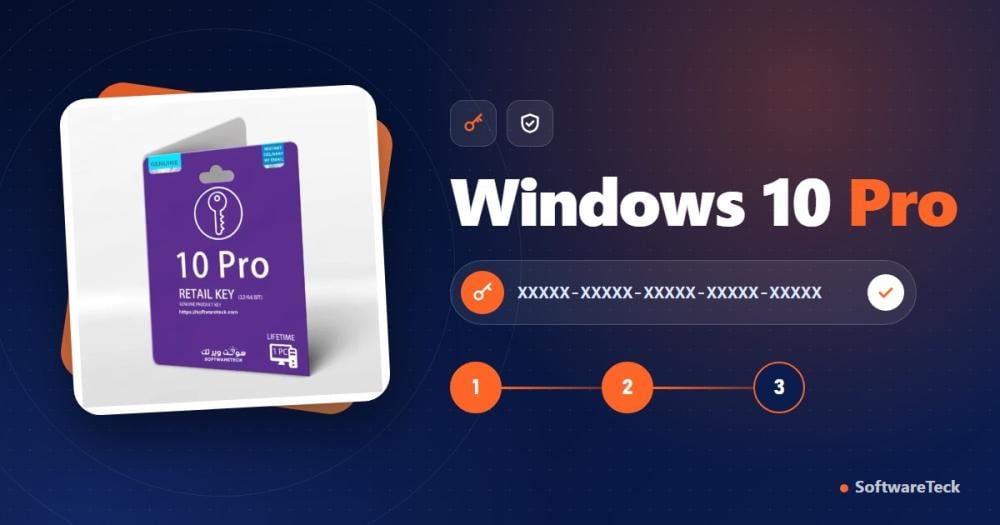
Bought a Windows 10 Pro licence, or about to? This guide shows how to activate Windows 10 Pro with a 25-character product key, whether you are doing a clean install or already run Windows 10. If you don't have a key yet, you can get a genuine Windows 10 Pro key from SoftwareTeck: a lifetime licence for one PC, sent by e-mail and SMS right after payment.
What you need before you start
- Your 25-character product key (format XXXXX-XXXXX-XXXXX-XXXXX-XXXXX), from the e-mail or SMS you received.
- A PC running Windows 10, or a USB flash drive of at least 8 GB if you plan a clean install.
- An internet connection: activation happens online with Microsoft's servers.
- A Windows account with administrator rights.
How to activate Windows 10 Pro step by step
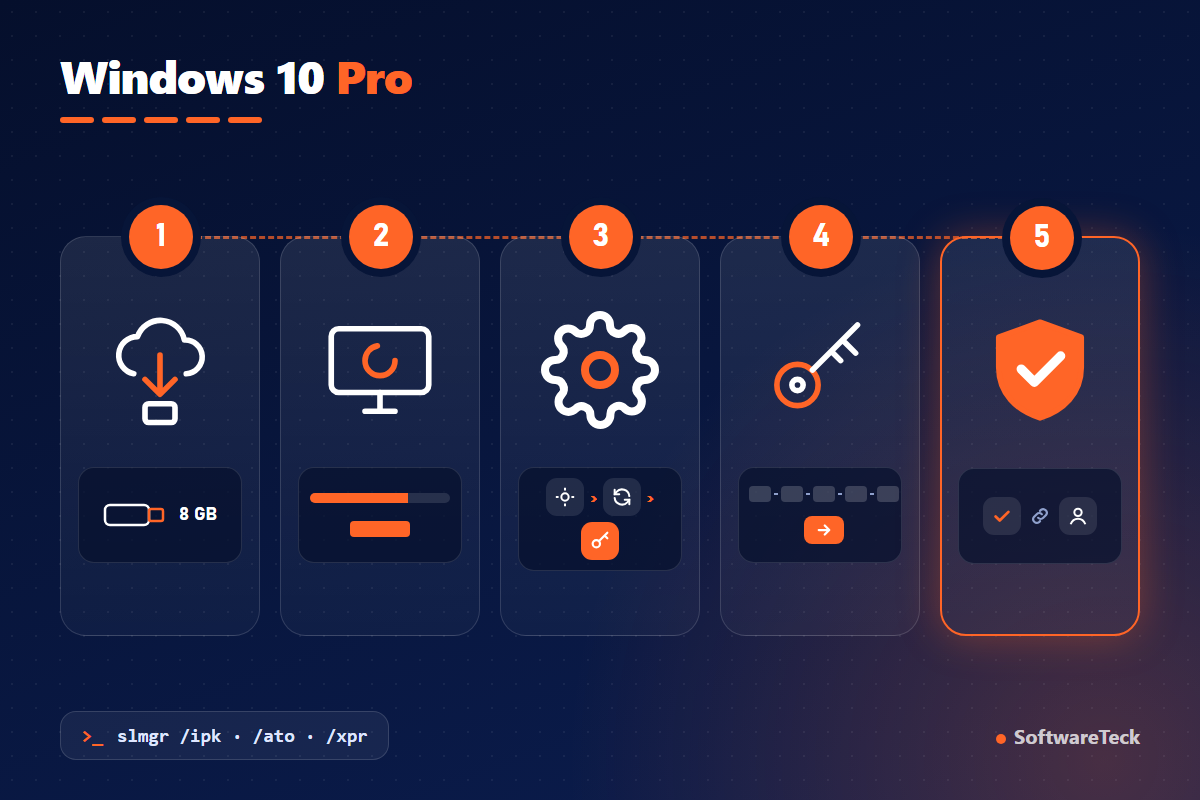
1. Download Windows 10 from Microsoft (clean install only)
Open the official Windows 10 download page and click Download Now to get the Media Creation Tool. Use it to create a bootable USB drive or an ISO file. If Windows 10 is already installed, skip to step 3.
2. Install Windows 10 Pro
Boot from the USB drive. When setup asks for a product key, paste yours and setup installs the matching Pro edition. You can also click I don't have a product key, choose Windows 10 Pro in the edition list and activate later.
3. Go online and sign in as an administrator
Make sure the PC is connected and that the date and time are correct. Changing the key and activating both need an administrator account.
4. Open the Activation page
Press Win + I and go to Settings › Update & Security › Activation. Shortcut: type "Activation settings" in the Start menu search box.
5. Click "Change product key"
Select Change product key. If User Account Control asks for permission, choose Yes.
6. Enter your 25-character key
Paste the key from your e-mail instead of typing it, so you don't mix up characters such as 8 and B, then select Next.
7. Confirm with "Activate"
Click Activate. Windows checks the key with Microsoft, usually within a few seconds. On Windows 10 Home the same key starts the upgrade to Pro instead, so save your work first: the PC may restart.
8. Check the activation status
The Activation page should now say Windows is activated or Windows is activated with a digital license. Recommended: click Add an account to link the licence to your Microsoft account, which makes reactivation easier after a hardware change.
Alternative method: activate Windows 10 Pro with Command Prompt
If the Settings page gives you trouble, open the Start menu, type cmd, right-click Command Prompt and choose Run as administrator. Then run these commands one at a time, replacing the X's with your key:
slmgr /ipk XXXXX-XXXXX-XXXXX-XXXXX-XXXXX slmgr /ato slmgr /xpr/ipk installs the key, /ato activates it online and /xpr shows the result, which should say the machine is permanently activated.
Common Windows 10 activation errors and how to fix them
0xC004F050: the key can't be used to activate Windows. Paste it again carefully; if the activation servers are busy, wait a little and click Activate again.
0xC004F210 / 0xC004E016: the key belongs to a different edition than the one installed. Check the Edition line on the Activation page: a Pro key needs Windows 10 Pro (or Home, which it upgrades).
0x8007232B / 0xC004F074: Windows is looking for an organisation's activation service, typical of Enterprise keys and work PCs. Enter your Pro key with Change product key.
0x80072F8F: the PC's date and time are wrong. Turn on automatic time in Settings › Time & Language and try again.
0xC004C008 / 0xC004C003: the key was already used on another PC or isn't valid. Don't try other keys; contact us with your order number and we will check it.
0xC004F213: no key is found after a motherboard change. If your Microsoft account is linked, run Troubleshoot on the Activation page; otherwise enter the key again.
FAQ: Windows 10 Pro activation
Does Windows 10 still get updates after October 2025?
Microsoft ended Windows 10 support on 14 October 2025, but an activated PC keeps working. Home users can enrol in Extended Security Updates (ESU) from Settings › Update & Security › Windows Update; Microsoft says the programme runs until 12 October 2027 and requires version 22H2. For the long term, Microsoft recommends moving compatible PCs to Windows 11.
Do I need a new key after formatting or reinstalling?
No. Reinstall the same edition (Windows 10 Pro), choose "I don't have a product key" during setup, and Windows activates automatically once it is online. If it doesn't, enter your key again in Change product key.
Can I upgrade Windows 10 Home to Pro with this key?
Yes. On an activated Windows 10 Home, open Settings › Update & Security › Activation › Change product key, enter the Pro key and select Next to start the upgrade to Windows 10 Pro.
How many PCs can I activate with one key?
One. The licence covers a single PC, so you need one key per computer.
How quickly do I receive the key?
SoftwareTeck sends the key by e-mail and SMS within seconds of payment, so you can follow this guide straight away.
Activate Windows 10 Pro today
No key yet? Order a genuine Windows 10 Pro key from SoftwareTeck: a lifetime licence for one PC, delivered by e-mail and SMS right after payment, and this guide covers the whole activation. Need help? Message our team on WhatsApp.