
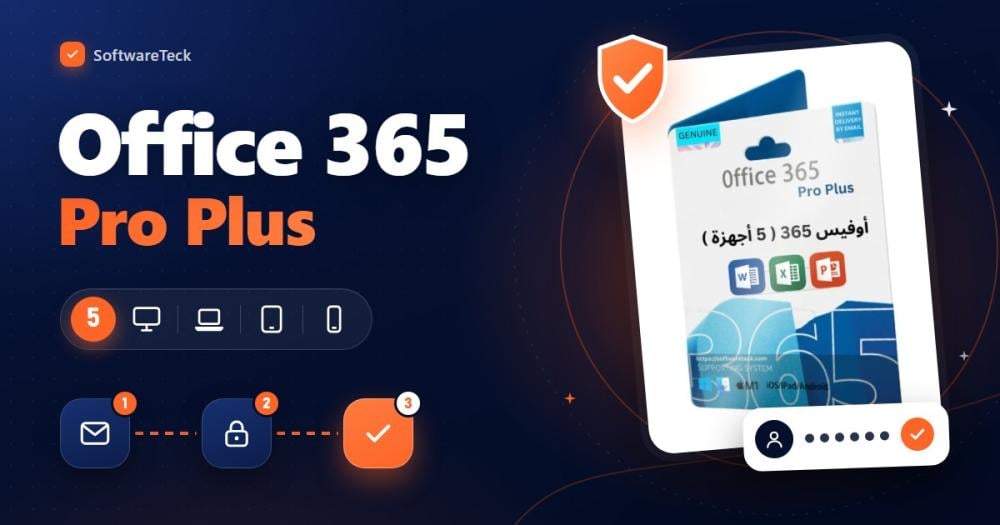
Bought an Office 365 Pro Plus subscription, or about to? Here is how to activate Office 365 the right way. There is no product key to type and no command to run: you sign in with the Microsoft 365 account you receive, set your own password and install the apps straight from Microsoft. This guide covers Windows, Mac, iPhone, iPad and Android, plus the errors people run into most often. If you don't have an account yet, order the Office 365 Pro Plus subscription for 5 devices — the product page says the account details arrive within seconds of payment.

What you need before you start
- The account details from your order: a user name that looks like an e-mail address, and a temporary password.
- A Windows PC or a Mac, or a phone or tablet running iOS or Android, with a stable internet connection.
- Administrator rights on the computer, because Windows asks for permission before the installer makes changes.
- A safe place for your new password, such as a password manager. The store states that a forgotten password cannot be recovered.
How to activate Office 365 Pro Plus in 8 steps
1. Get your account details
After payment the store sends your Microsoft 365 sign-in details; according to the product page they arrive within seconds. Check your inbox (and the spam folder), then copy the user name and password exactly, without extra spaces.
2. Sign in at login.microsoftonline.com
Open https://login.microsoftonline.com, enter the user name and select Next, then type the temporary password and select Sign in. It is the same link shown in the activation section of the product page.
3. Replace the temporary password
On the first sign-in Microsoft shows "Update your password". Enter the current (temporary) password, then your new password twice. Save it right away: there is no password recovery for this account.
Tip: choose a long password you don't use anywhere else, and never share it.
4. Complete the security check if asked
If "More information required" appears, select Next and follow the prompts to add the Microsoft Authenticator app or another method offered. When asked "Stay signed in?", choose Yes only on your own device.
5. Select Install apps › Microsoft 365 apps
You now land on the Microsoft 365 home page (office.com now opens m365.cloud.microsoft). Select Install apps › Microsoft 365 apps to download the official installer. If you don't see the button, select Apps in the left pane first.
6. Run the installer
On Windows, open the downloaded setup file, select Yes on the User Account Control prompt and wait for "You're all set! Office is installed now", then select Close. On a Mac, open Microsoft Office installer.pkg from Downloads and select Continue, Agree and Install.
7. Sign in inside Word, Excel or PowerPoint
Open Word, accept the license agreement and sign in with the same account. If no sign-in window appears, go to File › Account › Sign in. On a Mac, select Sign In on the start screen.
8. Check activation and add your other devices
Under File › Account › Product Information you should now see your Microsoft 365 product. Repeat steps 5 to 7 on your other computers. On phones and tablets, install Word, Excel or PowerPoint from the App Store or Google Play and tap Sign in. The subscription covers up to 5 devices.
Alternative method: Office is already installed
If Microsoft 365 apps are already on the computer, for example from an earlier subscription, you don't need to reinstall. Open Word › File › Account, select Sign out for the old account, then Sign in with the new one and restart the app. If an older edition such as Office 2019 or 2021 is installed too, remove it first in Control Panel › Programs and Features, because multiple copies of Office can cause activation errors.
No install button at all? Open the Microsoft 365 Software page at aka.ms/office-install, choose your language and the 64-bit or 32-bit version, and select Install.
Common errors and how to fix them
- AADSTS50126 – invalid user name or password. Retype it carefully, check the keyboard language and Caps Lock, and use the new password once you have changed it.
- AADSTS50053 – the account is temporarily locked after too many wrong attempts. Wait a few minutes, then sign in once with the correct password.
- AADSTS50055 – the password has expired. Follow the update screen: enter the current password, then a new one.
- AADSTS50079 – security info must be registered. Finish the Microsoft Authenticator setup from step 4.
- "Unlicensed Product" in the title bar – usually another account is signed in or several Office versions are installed. Check File › Account, sign in with the store account, remove duplicate versions and turn on Set time automatically in Windows.
- Signed in with a personal Outlook or Hotmail account? Office won't activate with it, because the subscription belongs to the account you received.
Frequently asked questions
Do I need a product key?
No. Office 365 Pro Plus activates when you sign in with the account you receive; there is no key to type in.
Can I use my own e-mail address?
Activation uses the account delivered by the store, not your personal Microsoft account. Your documents stay on your device or in any cloud service you choose.
How many devices can I use?
Up to 5 devices: Windows PC, Mac, phone or tablet. If you go over the sign-in limit, Microsoft automatically signs you out of a device; just sign in again when you need it there.
Is OneDrive storage included?
No. The product page states that cloud storage is not included.
What if I forget the password?
The store states there is no password recovery, so keep it safe. While you still know it, you can change it at myaccount.microsoft.com › Change Password.
Does it work on Mac, Android and iOS?
Yes. The store lists Windows, macOS, Android and iOS, with continuous official updates from Microsoft.
Activate Office 365 Pro Plus today
Ready to start? Order the genuine Office 365 Pro Plus subscription for 5 devices, follow the eight steps above and you'll be working in Word, Excel and PowerPoint within minutes. The activation section of the product page also has a short install video from the store. Need help? Message us on WhatsApp.