This guide is divided into 2 parts. Please read it carefully!!!
- Install Parallels Desktop and Windows 11 system.
- Install the Lifetime Key Certificate.
If you install one of these steps, you don't need to repeat the installation.
Video installation tutorial
1. Parallels Desktop official website download link:
(I will update the latest installation link here.)
27.0.0 Version: 「NEW」
https://download.parallels.com/desktop/v27/27.0.0-58628/ParallelsDesktop-27.0.0-58628.dmg
2. Lifetime key certificate download link:
https://download.parallels.zip
BUY LIFETIME KEY from Here
https://softwareteck.com/pAgOgjx
When upgrading or reinstalling Parallels Desktop, please download the latest version of the certificate again and enter key will activate .
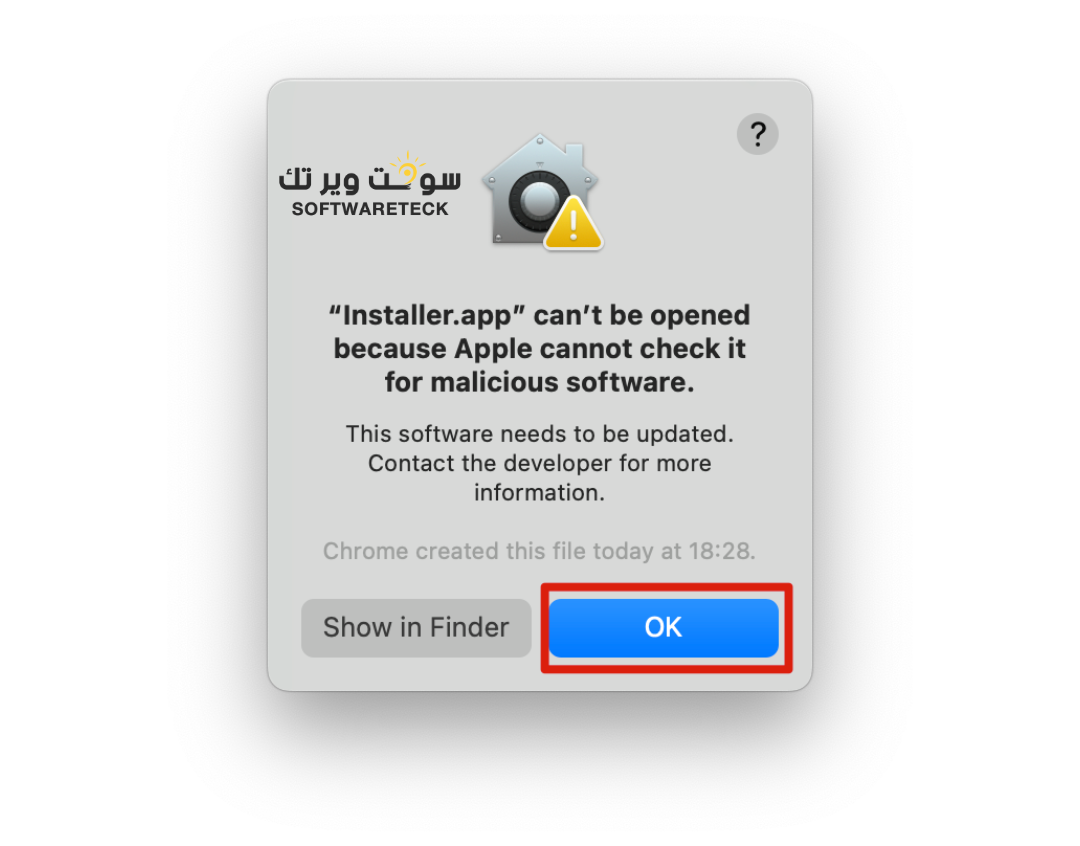
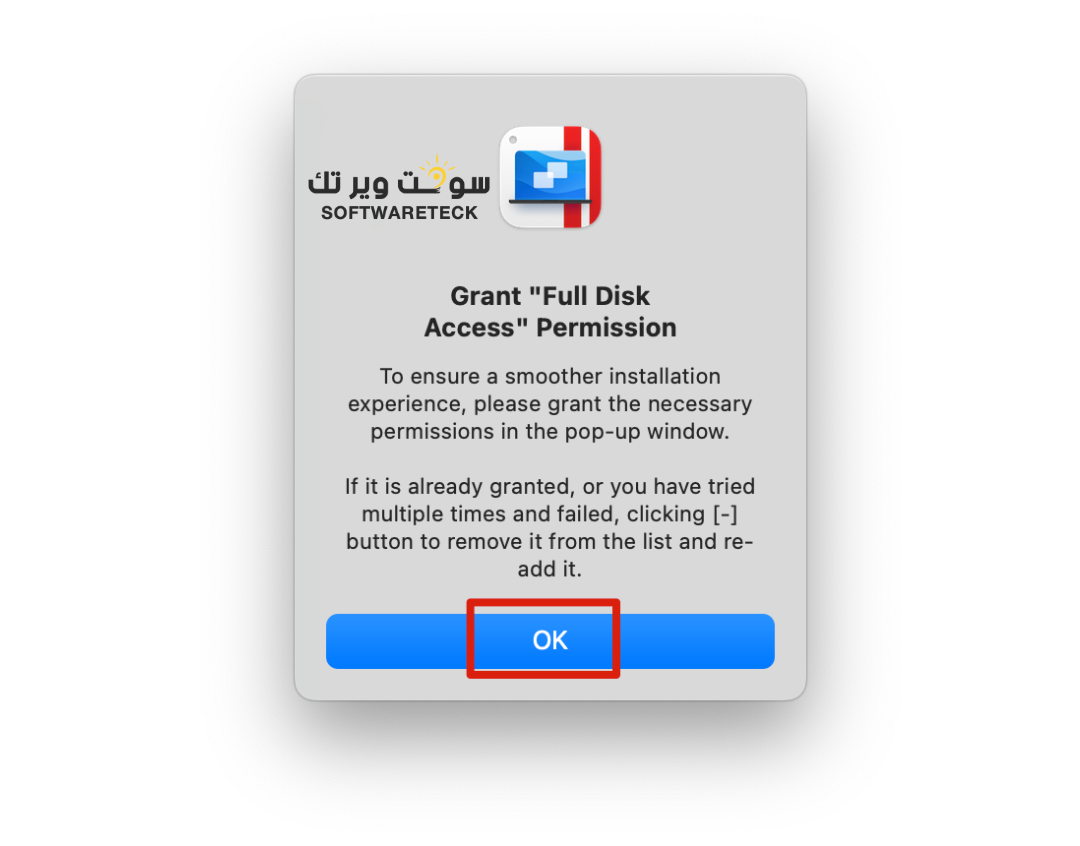
3. If it prompts that the certificate cannot be opened, please click [OK] first.
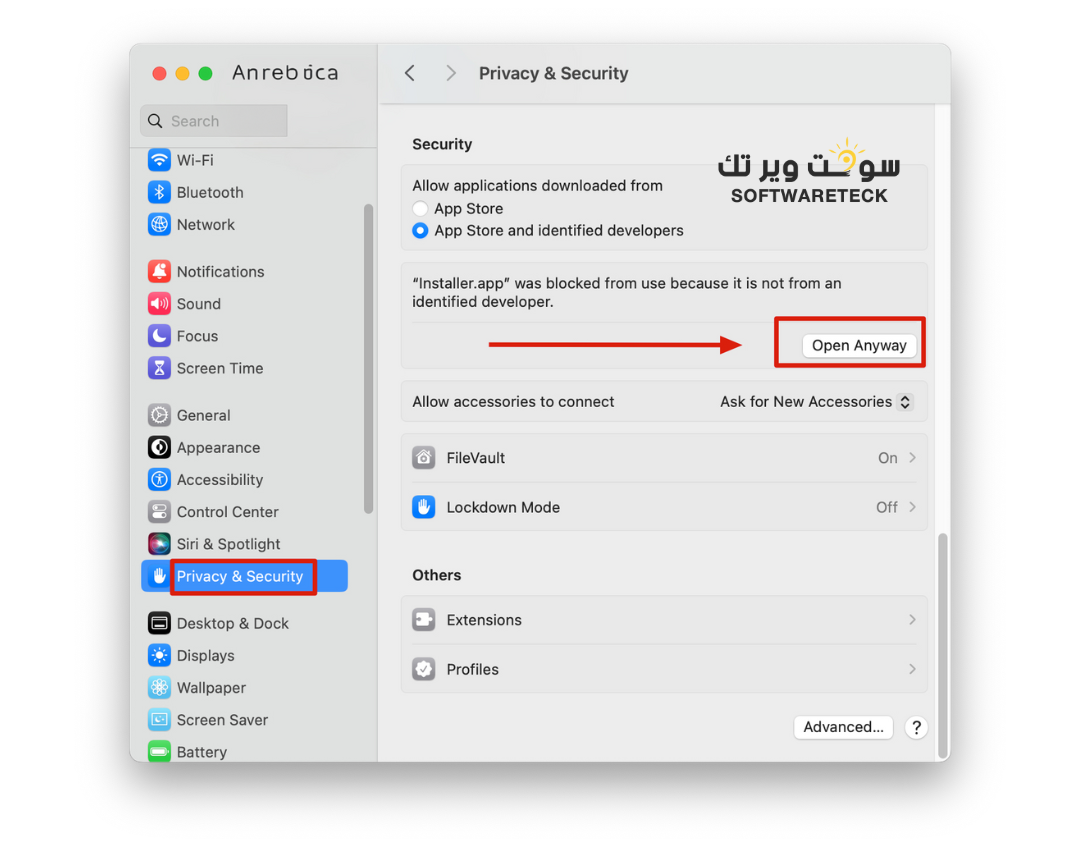
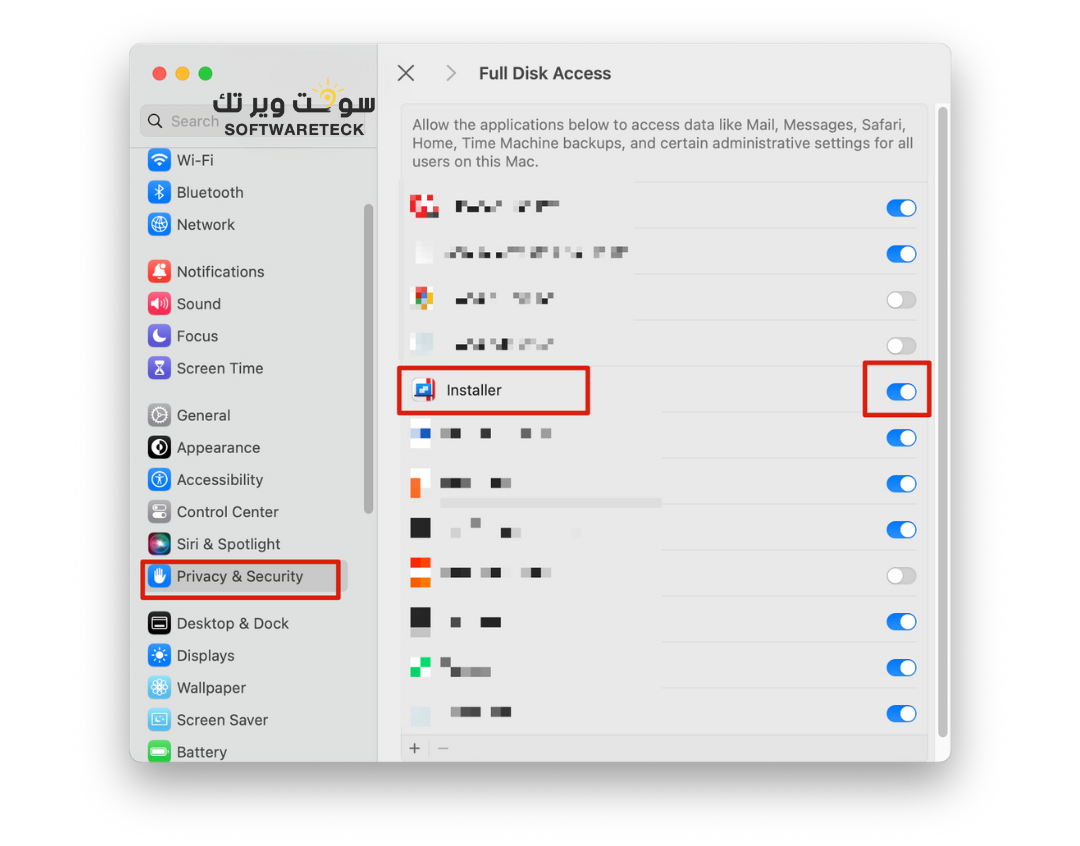
Then open the System Settings , open Privacy & Security , and click [Open Anyway].
4. Enter the serial number key you purchased. Click [Install/Update Cert].
Please send me a screenshot of the certificate so I can confirm there are no issues
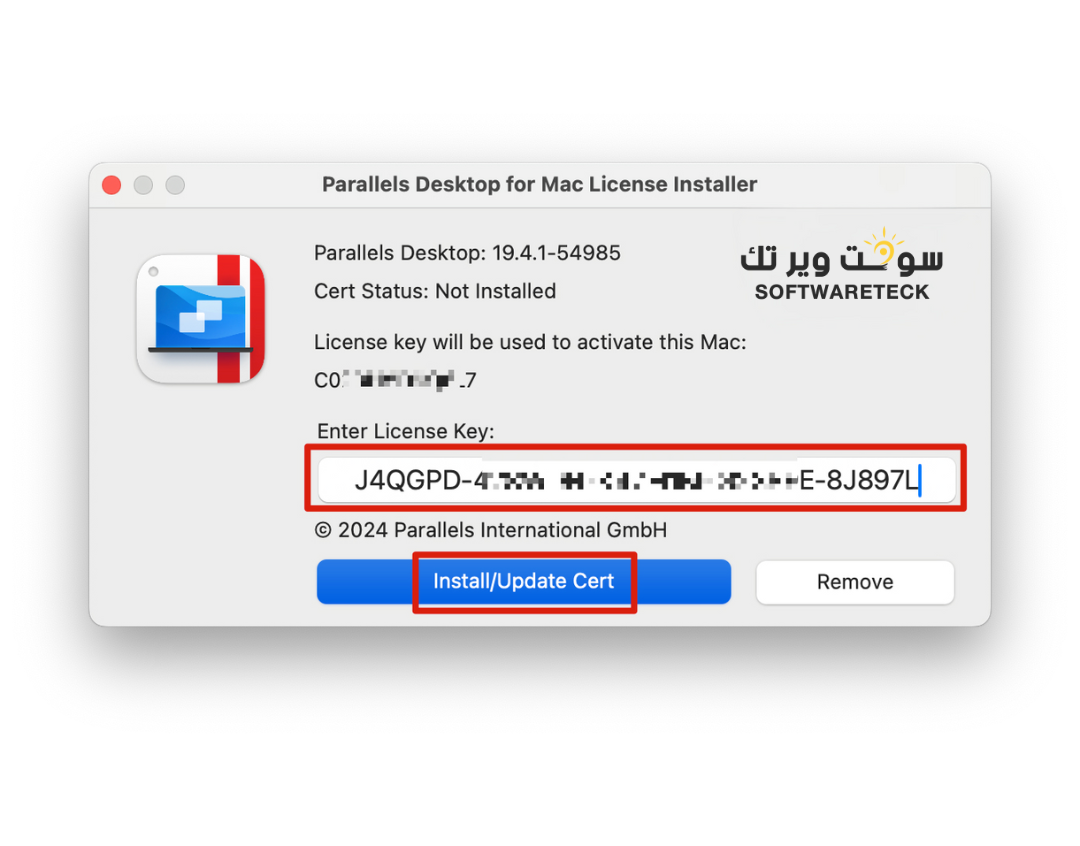
5. Please pay attention to ticking permissions.
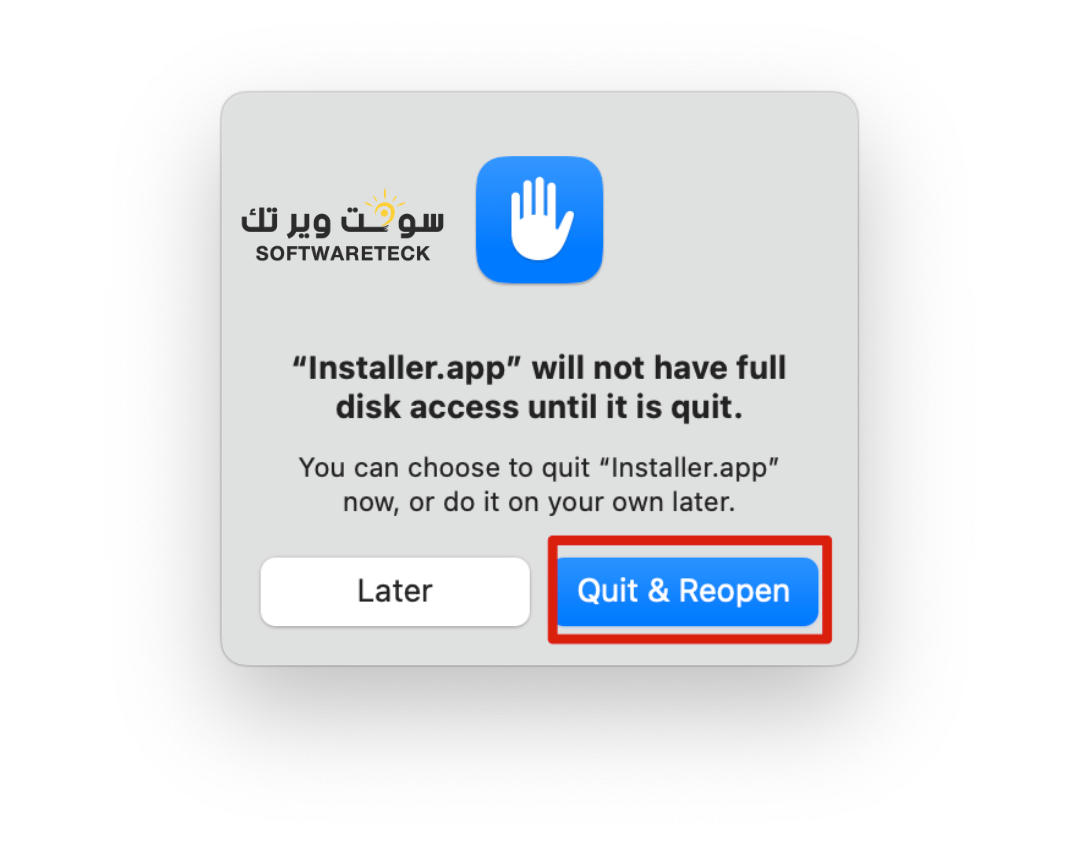
6. The certificate will be prompted to open again, please click [Quit & Reopen] and [Install/Update Cert] again.
7. After the certificate is successfully installed, the activation is complete. If you are activating this Mac for the first time, please log in to your Parallels Account.

8. If you are activating this Mac for the first time, after logging in, please click [Try Free for 14 days] once. Please note that the lifetime key is not entered here.
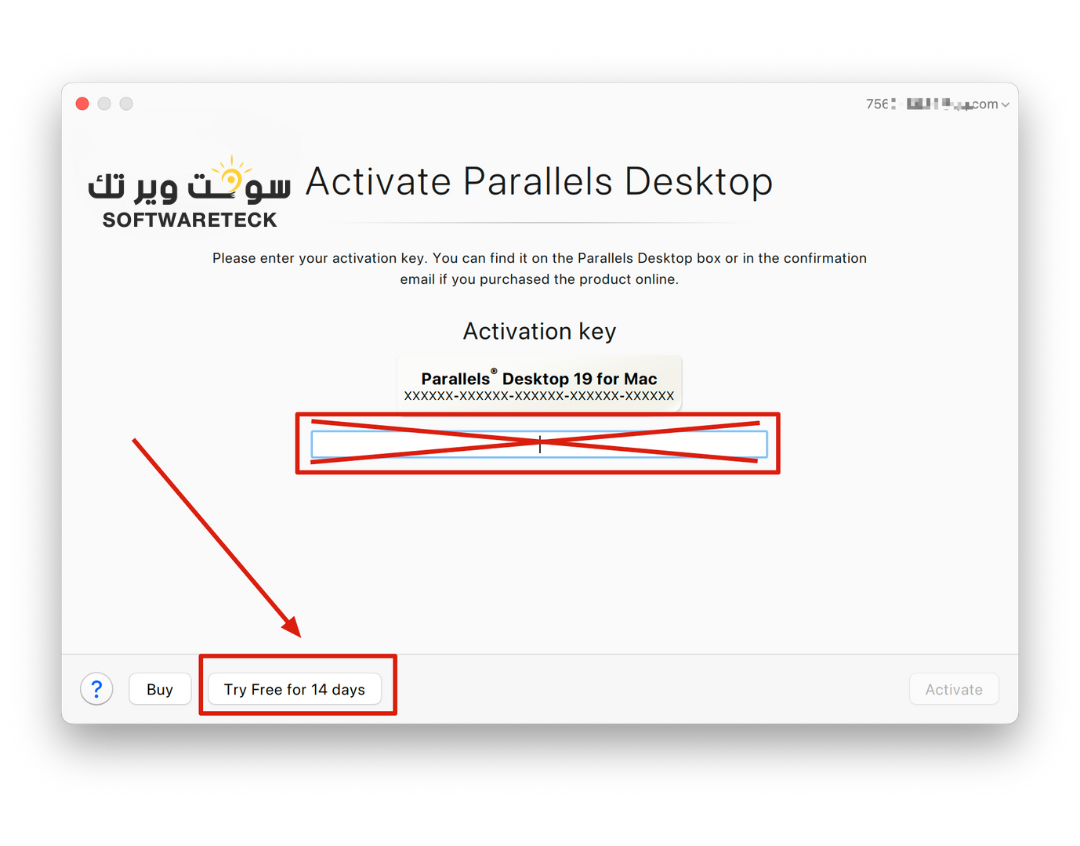
9. Congratulations! Activation has been completed. You can right click [Account & License...] to view the license status. 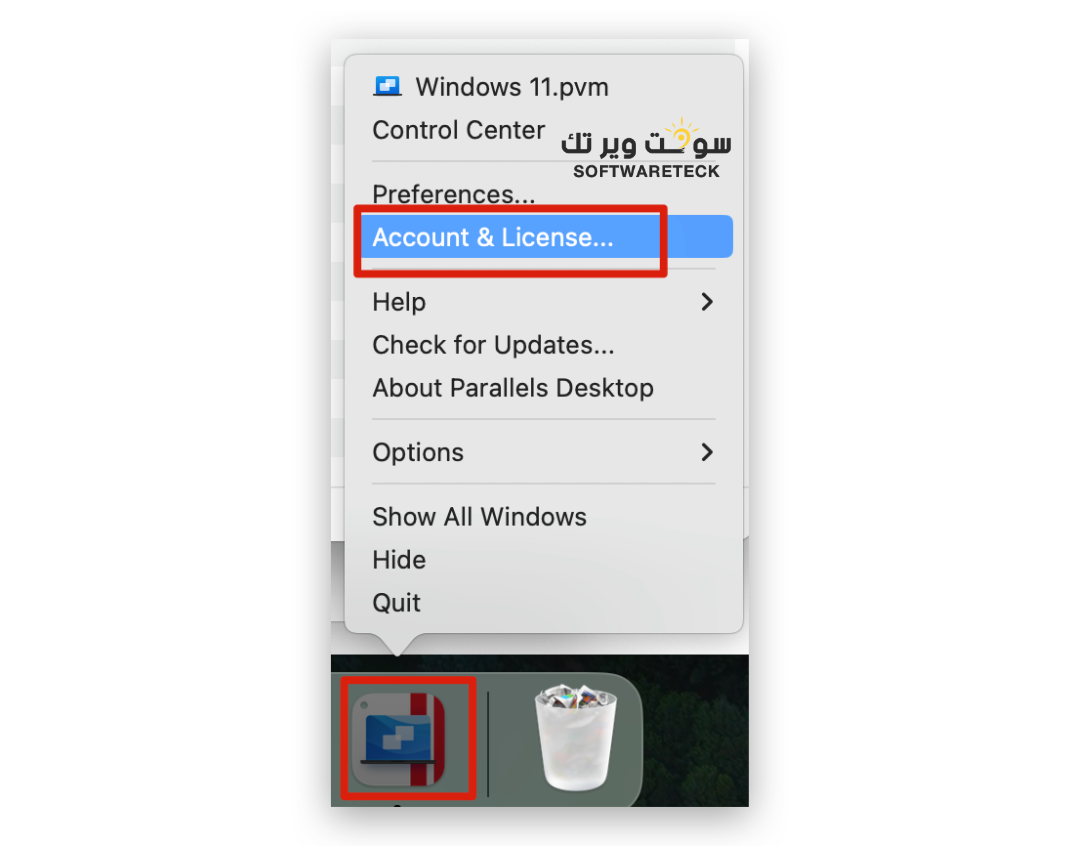
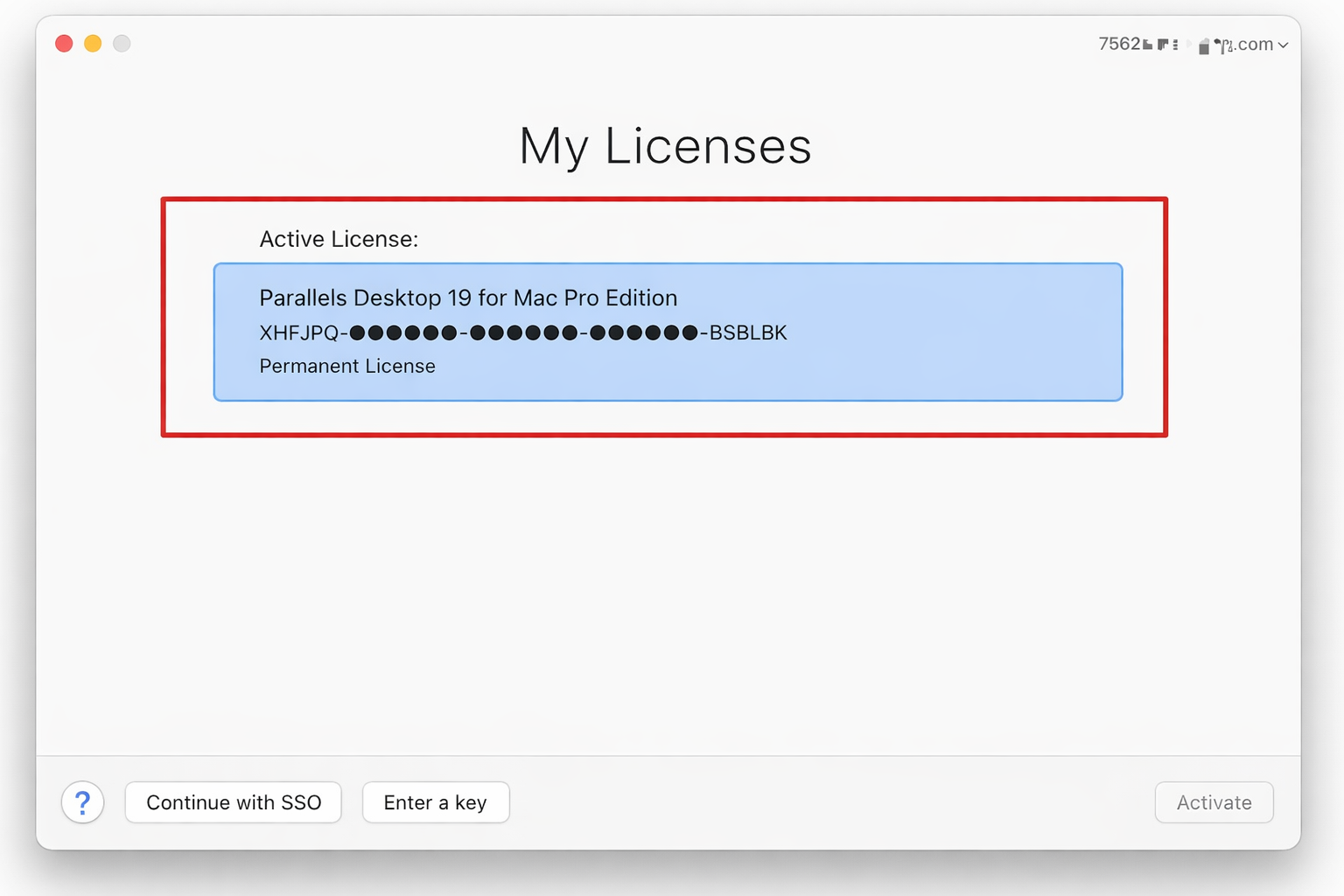
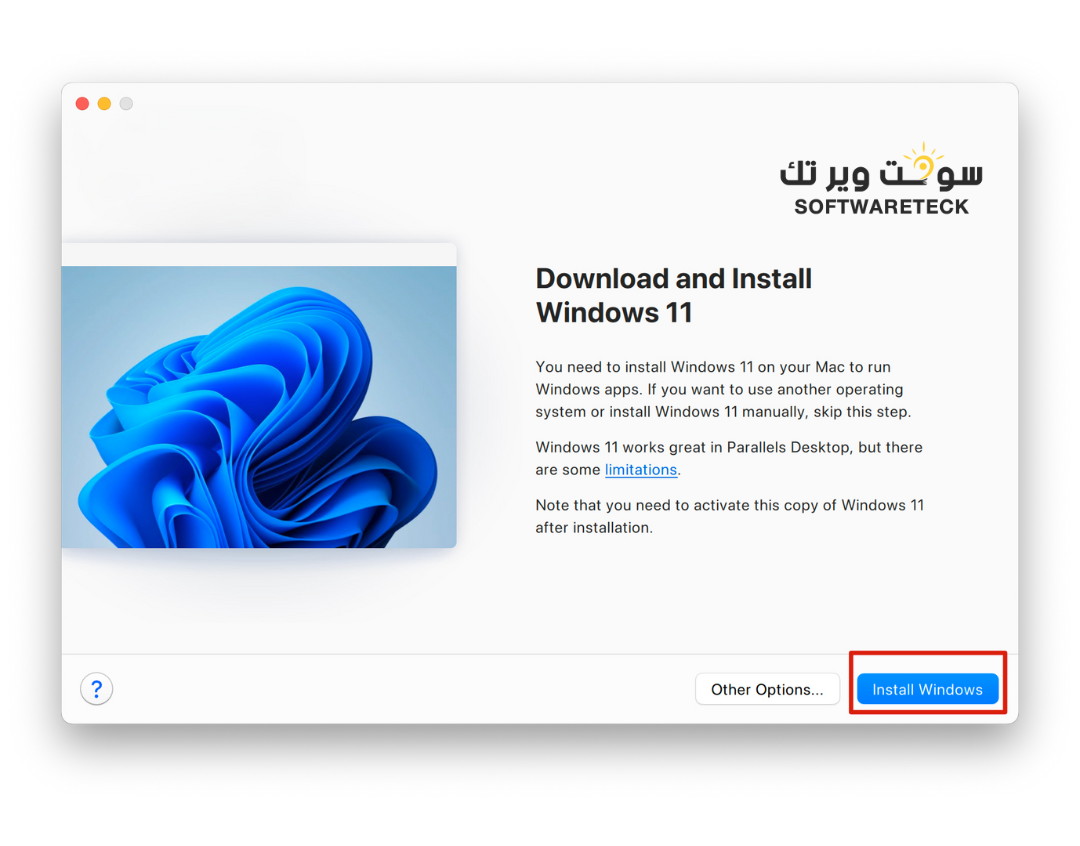
10. If you don't have Windows installed, you can also continue to install Windows.